Guides

Microsoft Excel Tips for Small Business Owners (2026)

By Super AdminPublished Aug 28, 2026Updated Aug 28, 20262 min read

Direct Answer

Essential Excel tips for small business owners: track expenses with tables, automate with formulas, use Copilot for analysis, and build simple dashboards. Here is how to use Excel to run your business better.

Key Takeaways

Essential Excel tips for small business owners: track expenses with tables, automate with formulas, use Copilot for analysis, and build simple dashboards. Here is how to use Excel to run your business better.

Microsoft Excel Tips for Small Business Owners: The Direct Answer

Small business owners should use Excel tables for expense tracking, key formulas for automation, Copilot for instant analysis, and simple dashboards for visibility. Excel is far more than a spreadsheet — used well, it is a lightweight business management tool. Here are the tips that matter most.

Tip 1: Use Tables for Everything

Turn any data range into an Excel Table (Ctrl+T). Tables auto-expand as you add rows, include built-in filtering and totals, and make formulas cleaner. For expense tracking, sales logs, and inventory, Tables are the foundation.

Tip 2: Master a Handful of Formulas

You do not need to be an Excel expert — just know the essentials: SUM for totals, SUMIF to total by category, IF for logic, and XLOOKUP to find data. These five handle most small business analysis. With Copilot in Microsoft 365, you can also just describe what you want and let AI write the formula.

Tip 3: Let Copilot Do the Heavy Lifting

Copilot in Excel is a game-changer for non-experts. Ask it in plain language: "total expenses by category last quarter" or "show my top 5 customers by revenue" — and it generates the analysis, formula, or chart. It makes Excel's power accessible without the learning curve.

Tip 4: Build a Simple Dashboard

Create a one-page dashboard with your key numbers: revenue, expenses, profit, top products, outstanding invoices. A few SUMIF formulas and charts give you an at-a-glance view of your business health that you update weekly.

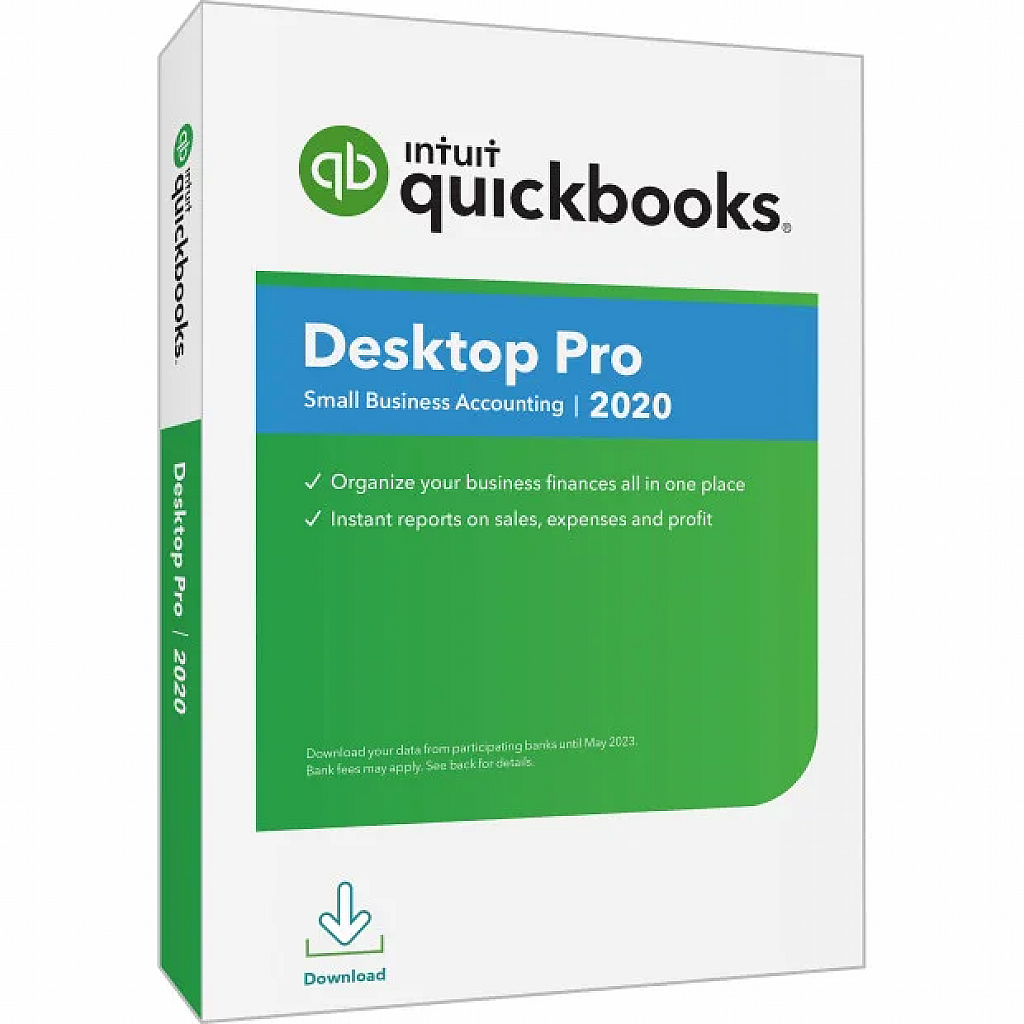
Tip 5: Know When to Graduate to QuickBooks

Excel is great for analysis, but it is not an accounting system — no automatic bank feeds, invoicing, or tax reports. When manual tracking becomes tedious, move your books to QuickBooks and keep Excel for custom analysis. See the products below for both.

The Bottom Line

Use Excel Tables, a few key formulas, Copilot for analysis, and a simple dashboard to run your business with real numbers. See the product below for Microsoft 365 at a competitive price.

Frequently Asked Questions

FAQ

How can small businesses use Excel?

Small businesses use Excel for expense tracking, budgeting, invoicing records, inventory, sales data, and financial forecasting. Excel tables, formulas, and Copilot AI make these tasks fast and accurate.

What Excel formulas should small business owners know?

The most useful are SUM (totals), SUMIF/SUMIFS (conditional totals), IF (logic), VLOOKUP or XLOOKUP (finding data), and basic percentage calculations. Copilot in Excel can also generate formulas from plain language.

Can Excel replace accounting software for a small business?

For very simple finances, Excel can work temporarily, but it lacks automatic bank feeds, invoicing, and tax reports. Most businesses quickly benefit from QuickBooks for accounting while keeping Excel for custom analysis.

What is Copilot in Excel?

Copilot in Excel is an AI feature in Microsoft 365 that generates formulas from plain-language requests, analyzes your data, creates charts, and answers questions about your spreadsheets — no formula expertise needed.

How do I track business expenses in Excel?

Create a table with columns for date, category, description, and amount. Use Excel's Table feature for automatic filtering and totals, and SUMIF to total by category. For automatic tracking, QuickBooks is easier long-term.

Related Products

Microsoft 365 Personal - Lifetime
Best Seller-71%

Software

Microsoft 365 Personal - Lifetime

Word, Excel, PowerPoint, 1TB OneDrive — genuine license.

LifetimeSubscription Key
$19.99$69.99
Windows 11 Pro - Lifetime
Best Seller-95%

Software

Windows 11 Pro - Lifetime

Genuine Windows 11 Pro OEM license key, lifetime.

LifetimeLicense Key
$10.99$199.99

Related Articles